How to Exclude Products from Order Discounts in Shopify

Running a store-wide order discount is one of the most effective promotional strategies in ecommerce, but it comes with a common problem: some products should not be discounted. Gift cards, already-reduced sale items, newly launched products, and low-margin essentials all need protection from blanket discounts. PowerX Functions Creator gives you precise control over which products participate in your order discounts and which ones stay at full price.
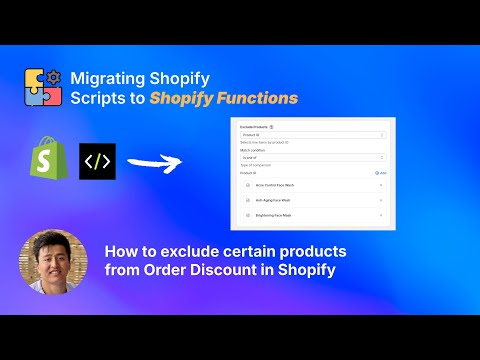
What You’ll Learn in This Video
Section titled “What You’ll Learn in This Video”- How to set up order discounts that automatically exclude specific products
- Using item selectors to define exclusion rules by product, collection, tag, or variant
- Configuring cart qualifiers to add cart-level conditions to your exclusions
- Testing exclusion rules to ensure protected products remain at full price
Step-by-Step Guide: Excluding Products from Order Discounts
Section titled “Step-by-Step Guide: Excluding Products from Order Discounts”Why Product Exclusions Matter
Section titled “Why Product Exclusions Matter”Order-level discounts apply to the entire cart by default. When you create a “15% Off Everything” promotion, Shopify’s native system means exactly everything — including products you cannot afford to discount. This creates several real business problems:
Margin erosion on sale items. Products already marked down 30% should not receive an additional 15% order discount. That compounds to a 40.5% total reduction, which can push items below cost.
Gift card discount abuse. If your order discount applies to gift cards, customers can buy discounted gift cards and then use them at full value — effectively getting free money. Shopify’s native discounts do not prevent this automatically.
New product launch protection. When you launch a new product at full price with strong demand, applying a store-wide discount undermines both revenue and perceived value.
Low-margin product protection. Every store has products with thin margins — consumables, replacement parts, licensed goods. These cannot absorb additional discounts without going negative.
Setting Up Exclusions with PowerX
Section titled “Setting Up Exclusions with PowerX”PowerX’s order discount campaigns support granular product exclusions through item selectors. Here is how to configure them:
-
Create an Order Discount campaign. In the PowerX dashboard, navigate to Order Discounts and create a new campaign. Set your discount value — for example, 15% off the order.
-
Open the exclusion settings. Within your campaign rules, look for the product exclusion section. This is where you define which items should not receive the discount.
-
Exclude by collection. Select entire collections to exclude — “Sale Items,” “Gift Cards,” or “New Arrivals.” Every product in those collections remains at full price while all other products in the cart receive the 15% discount.
-
Exclude by product tag. Use tags for more dynamic control. Tag products with “no-discount” or “protected-margin” and exclude that tag. This lets you add or remove products from the exclusion list by simply editing tags in the Shopify admin, without touching the discount configuration.
-
Exclude by specific product or variant. For one-off exclusions, select individual products or specific variants. This is useful for limited-edition items or specific SKUs with margin constraints.
-
Combine exclusion methods. You can layer multiple exclusion types. Exclude the “Sale” collection AND any product tagged “gift-card” AND a specific high-demand product — all within the same rule.
Preventing Discount Stacking on Sale Items
Section titled “Preventing Discount Stacking on Sale Items”A particularly common scenario is preventing customers from applying an order discount on top of products that already have a compare-at price (sale items). PowerX can detect products with active compare-at prices and exclude them from the order discount. This means your clearance section stays at its marked-down price without receiving additional order-level reductions.
Cart Qualifiers for Smarter Exclusions
Section titled “Cart Qualifiers for Smarter Exclusions”Beyond product-level exclusions, cart qualifiers let you set conditions on when the entire order discount activates. Require a minimum cart subtotal, a minimum item count, or the presence of specific products before the discount kicks in. This prevents the discount from applying on small or unqualified orders entirely.
Key Takeaways
Section titled “Key Takeaways”- Product exclusions protect margins on sale items, gift cards, new launches, and low-margin products
- Exclude by collection, product tag, individual product, or variant for maximum flexibility
- Tag-based exclusions let you manage the exclusion list from Shopify admin without editing discount rules
- Cart qualifiers add order-level conditions that complement product-level exclusions
- Layering multiple exclusion types within one rule covers complex business requirements
Frequently Asked Questions
Section titled “Frequently Asked Questions”Can I exclude specific products from order-level discounts?
Section titled “Can I exclude specific products from order-level discounts?”Yes, using PowerX you can exclude products by tag, collection, variant, or individual product selection from any order discount. The exclusion rules are flexible enough to handle any combination of product criteria.
Will excluded products still show in the cart with the discount?
Section titled “Will excluded products still show in the cart with the discount?”Excluded products appear in the cart at full price while other qualifying products receive the discount as configured. The customer sees a clear breakdown — discounted items show the reduced price and excluded items display their original price.
Can I exclude already-discounted or sale items from additional discounts?
Section titled “Can I exclude already-discounted or sale items from additional discounts?”Yes, you can set conditions to prevent discount stacking on products that are already on sale or have compare-at prices. This protects your margins on clearance items while still running store-wide promotions on full-price inventory.
Video Series Navigation
Section titled “Video Series Navigation”This is Part 2 of our Shopify Functions Tutorial Series.
- Previous: How to Use One Discount Code for Different Amounts Per Collection
- Next: How to Set Different Discounts for Subscriptions vs One-Time Purchases
Ready to run promotions with precise product exclusions?
- Install PowerX Functions Creator — free on development stores, 3-day free trial on paid plans
- Read the Order Discount documentation for the full configuration reference
- Learn about Item Selectors to define exactly which products to exclude
- Explore Cart Qualifiers for order-level conditions